Candy AI app: is there one for iPhone or Android?
No. Candy AI has no native app for iPhone or Android, according to its help center as checked on 13 November 2026, and it is not distributed through the App Store or Google Play. It runs in the phone’s browser and can be added to the home screen as a Progressive Web App, which hides the address bar and allows push notifications.
Key points
- There is no native iOS or Android app (help-center article updated 5 November 2026).
- To install, open candy.ai in the phone’s browser, tap Share (iPhone) or the three-dot menu (Android), then Add to Home Screen.
- The installed web app removes the address bar and enables push notifications.
- A download offered elsewhere as a Candy AI app or APK file matches nothing in Candy AI’s documentation.
The short answer: a web app, not a store app
Candy AI is a website. The company’s help center says it does not offer a native mobile app for iOS or Android and that the service is used through the mobile browser. What it offers in place of a store app is a Progressive Web App, or PWA: a way of pinning the website to the home screen so that it opens like an app.
This matters for searches such as “Candy AI app download”. There is nothing to download. Installation takes a few taps in the browser you already have.
| Question | Answer from the help center |
|---|---|
| Native iPhone app? | No |
| Native Android app? | No |
| Works in the mobile browser? | Yes |
| Can be put on the home screen? | Yes, as a Progressive Web App |
| Push notifications? | Yes, once installed |
How to install it on iPhone and Android
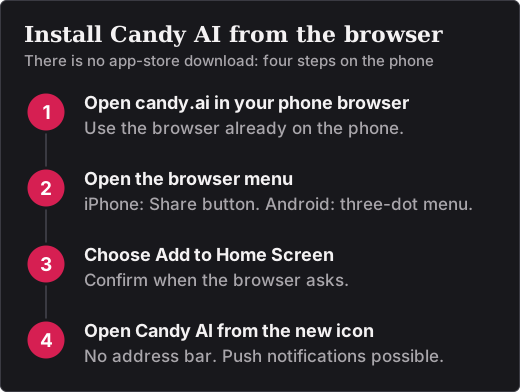
- Open candy.ai in your phone’s browser.
- On an iPhone, tap the Share button. On Android, tap the three-dot menu.
- Choose Add to Home Screen.
- Confirm. A Candy AI icon appears on the home screen, and tapping it opens the service.
The wording of the menu entry can differ slightly between browsers and system versions. If you cannot find it, look for an entry about the home screen in the same menu.
What the home-screen version changes
The help center gives two concrete effects. The installed version removes the browser’s address bar, which leaves more of the screen for the chat, and it enables push notifications.
Everything else stays the same, because it is the same website in a different frame. You log in with the same account, and there is no separate version to update through a store.
Two details are worth knowing before you add the icon. The shortcut points to whatever site is open when you create it, so check that the address bar reads candy.ai. And notifications need your permission: a browser asks before a site may send them, and you can refuse or withdraw that permission later in the phone’s settings. Removing the icon does not delete your account.
Candy AI runs in the browser, on a phone or on a computer. Affiliate link to Candy AI.
Open Candy AIAvoid look-alike apps and APK files
Because the help center says there is no native app, a “Candy AI” listing in an app store, or an APK file offered for download, matches nothing that Candy AI documents. The help center describes one installation method only: Add to Home Screen from the browser. A look-alike app could be a harmless wrapper around the website, or it could be built to collect logins and card details. You cannot tell from the outside, so do not use one.
The same caution applies to this site. Candy AI Guide is an independent website; it has no app, no login and no access to Candy AI accounts. More precautions are on our page about Candy AI safety and legitimacy.
Subscriptions are not handled by an app store
Because there is no store app, there is no App Store or Google Play subscription to look for in your phone’s list of app subscriptions. The help center describes one way to cancel: on the website, under My Profile, Settings, Unsubscribe. Apple Pay and Google Pay are among the payment methods it lists, as ways of paying for a plan and not as store subscriptions. Card charges appear on a statement as “EverAI”. The steps are on our page about canceling a Candy AI subscription.
Features tied to the device
A few documented features depend on the device. Live Action, the Premium-only interactive video feature for selected characters, is currently available on mobile only. Voice calls are in beta and need the microphone to be allowed for the browser. Voice messages, calls and some Live Action actions use tokens, as explained on our page about Candy AI tokens.
If you cannot log in on your phone
The help center lists five things to try:
- Clear the browser’s cache and cookies.
- Use “Forgot Password” on the login page, and check the spam folder for the email.
- Try another browser or another device.
- Check the email address and password for typos.
- Update the browser.
If none of these works, contact Candy AI support at support@candymail.ai. This site cannot reset anything or look up accounts.
Using Candy AI on a computer
On a laptop or desktop there is nothing to install either. Candy AI opens in the browser, with “Login” and “Join Free” at the top of the home page. A free account covers five messages, one custom character and one image; the details are on our Candy AI free plan page.
Sources
Pages published by Candy AI and used for this article, each read on 13 November 2026.
- Does Candy.ai have an app for iPhone or Android?
- What is Live Action?
- Why is my microphone not working?
- I can’t login to my Candy account, what can I do?
- What can I do with tokens?
- What can I do as a free user?
- How do I cancel my subscription?
- What are the accepted payment methods?
- What’s the charge in the billing statement?
- Candy AI home page